
Grafana Intelligence Gateway
Bring AI analysis to your Grafana data and dashboard images.
Grafana Intelligence Gateway by DigitalRCS connects your dashboard to local AI or hosted frontier models through the required Intelligence Gateway Secure AI data source. Ask questions about query results, dashboard captures, or uploaded images and display the model's assessment alongside your charts, without copying evidence into a separate chat application.
Choose OpenAI, LM Studio, Open WebUI, the optional Grafana LLM app, a custom OpenAI-compatible Chat Completions endpoint, or Copilot Studio Direct Line (preview) in the companion data source. Model and image capabilities depend on the configured provider.
Version 1.1.0 adds whole-dashboard capture, selected-panel capture, and multiple PNG/JPEG uploads. Images require an administrator-approved vision model, a preview, and an explicit Analyze images action. Copilot's Direct Line adapter is a preview, not corporate SSO or delegated Entra integration. See the image workflow and Copilot setup and authentication.
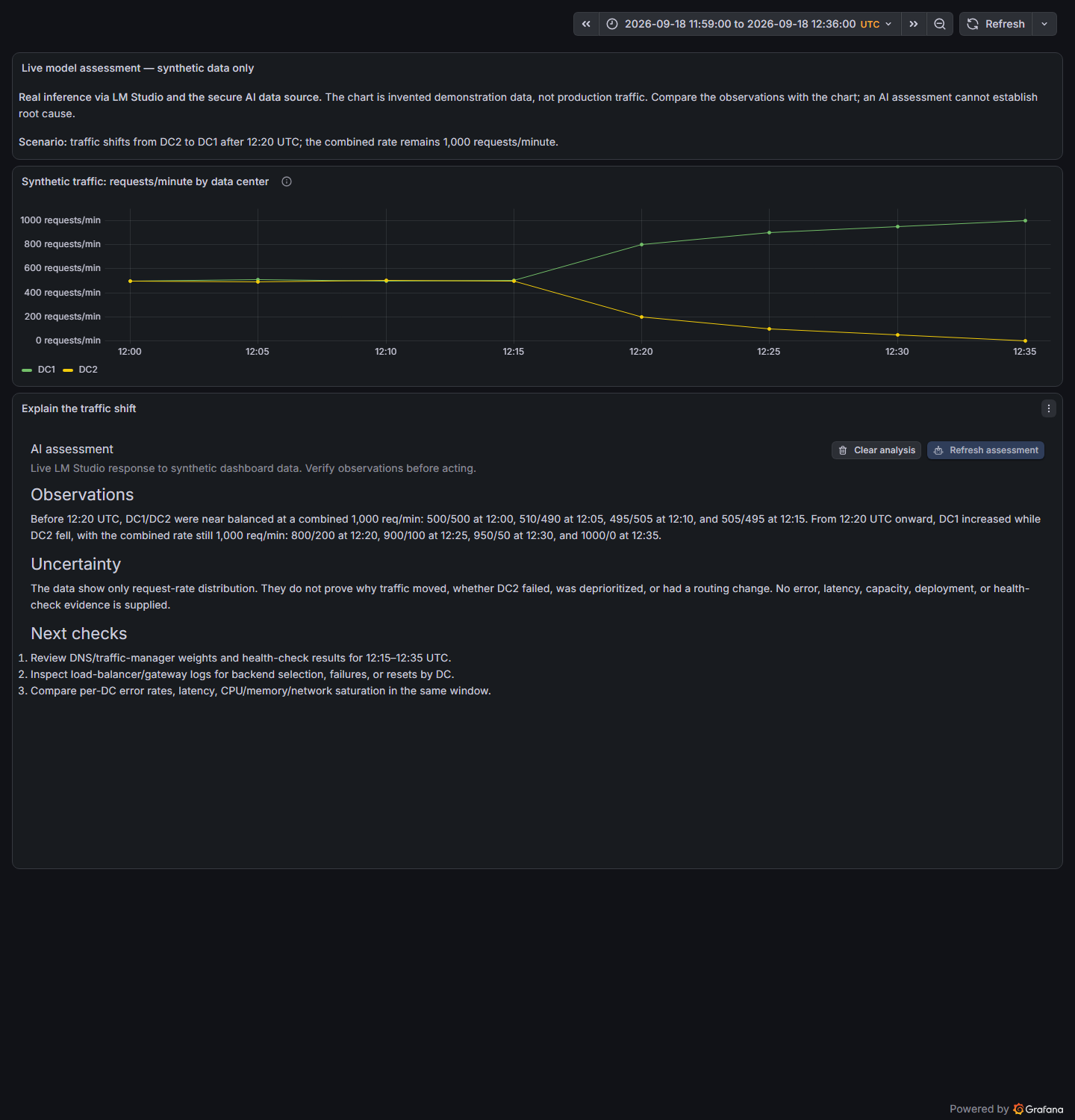
Example: a local LM Studio model explains a traffic shift in synthetic demonstration data, identifies gaps in the evidence, and suggests follow-up checks.
Turn panel data into operational context
- Explain changes in metrics. Ask the model to summarize trends, spikes, drops, and differences between series.
- Compare sites or services. Examine activity across data centers, applications, or environments using the query results already in your dashboard.
- Summarize an incident window. Combine the selected time range with your team's definitions, thresholds, and runbooks.
- Prepare a handover. Request a concise account of observations, uncertainty, and next checks for another operator.
- Review visual evidence. Ask a vision model to assess selected charts or approved diagrams, with or without query rows.
For example: “Compare DC1 and DC2 over this time range. Describe the traffic shift, distinguish observations from possible causes, and suggest three checks.”
Use the data from an existing panel
The panel analyzes time-series and table query results. It can run its own Grafana queries or reuse another panel's results through Grafana's built-in Dashboard data source. Images are optional: capturing a chart adds its rendered appearance, not its underlying query results.
| Assessment | Setup | Action |
|---|---|---|
| Data only | Connect queries or select a Dashboard source panel. Leave images unattached. | Analyze |
| Images only | No query results are required. Turn off Include query data with images, then capture panels or add files and review the previews. | Use images, then Analyze images |
| Data and images | Connect the query data and leave Include query data with images on. Capture or add images and review the previews. | Use images, then Analyze images |
Who provides what:
| Connection | What it provides |
|---|---|
| Queries → Dashboard → Source panel | The existing panel's query results to analyze. |
| AI provider → Secure AI data source | The connection to your local or hosted model. |
| TestData DB in the supplied demo | Synthetic chart rows, not an AI model. |
| DEMO ONLY - Mock AI (no inference) | A fixed connectivity receipt, not data or image analysis. |
Field names, labels, units, recent rows, and the active time range give the model context for its answer. Use Grafana transformations and the panel's row and character limits to control the input.
Get started
Requires Grafana 11.6 or later and Intelligence Gateway Secure AI data source 1.1.0 or later. Install the companion before panel 1.1.0. The optional Grafana LLM app has its own requirements; the documented app 1.2.0 integration requires Grafana 13 or later. The Current View Exporter plugin is not required.
- Configure the AI connection. In Connections → Data sources → Add new data source, create an Intelligence Gateway Secure AI instance with your provider endpoint, required secure credentials, and an approved model, then Save & test. The endpoint must be reachable from Grafana's server/container. If using the supplied demo, create a separate real-provider instance and retain the mock.
- Choose the evidence. Add a Grafana Intelligence Gateway panel. For data-only or combined analysis, select Queries → Dashboard and a source panel returning data for the selected time range. For images-only analysis, query results are optional.
- Choose the model. Under AI provider, select the Secure AI data source, then use Load models securely to choose an available, administrator-approved model.
- Set the analysis task. Add your question to the user message template. For data-only or combined assessment, keep
{{data}}to include query results; for images-only, ask about the attached evidence. Use{{skills}}to include definitions or runbook guidance from Skills / additional context. - Run the assessment. Select Analyze for query data. For images, open Images, capture or add files, inspect every preview, choose Use images, and select Analyze images. Use Clear analysis to clear the answer and pending images without changing the source data.
The illustrated setup guide explains every setting. See Connecting Data from Other Panels for query sharing and transformations.
Try the supplied demo in two phases
Phase 1 — verify connectivity. The supplied DEMO ONLY - Mock AI (no inference) instance returns a fixed receipt: no model runs, and no data or image analysis occurs. The synthetic TestData chart and successful receipt prove the request path, not AI quality. Check the analysis panel's AI connection label for the instance currently selected; the dashboard introduction describes only the supplied default.
Phase 2 — connect a real model. Create a separate secure AI instance, configure its server-reachable endpoint, approved model, and any required secure credentials, then select Save & test. In the panel's AI provider settings, select that instance and model. Queries → Dashboard selects measurements, not the AI connection; it is optional for images-only analysis. Confirm the connection label has changed before analyzing.
For LM Studio on the Docker Desktop host, the usual base URL is http://host.docker.internal:1234/v1; container localhost is not the host computer. Other hosts require an address reachable from Grafana and approved server/firewall settings. Plain HTTP requires an explicit trusted-lab exception; model, network, credential, payload, and timeout safeguards still apply. Follow the real-provider quickstart for exact steps, reasoning-token budgets, and timeout examples. Neither a mock receipt nor a successful model-list request verifies vision.
Shape the analysis
Customize system instructions, the user message template, and reusable context. Prompt variables can include the panel title, time range, source-panel label, and query data.
Run data analysis manually or enable automatic analysis when data and prompts change. Images are never submitted automatically. Adjust input size, output-token limits, response timeout, and the requested answer length. A reasoning model may spend its output budget before producing a visible answer; increase both the panel cap and administrator ceiling where appropriate, rather than only the requested answer length. Administrator and provider limits still apply, including when the panel uses the provider/model default output limit.
Responses appear as formatted Markdown. Refresh assessment reruns the current assessment; after a successful image assessment, capture or attach images again to include them in a new request. Clear analysis removes the response and pending images and cancels an active request. The image preview also supports removing individual images or all staged images.
Choose where your data is processed
The companion data source sends the selected query data, prompts, additional context, and explicitly submitted images to the provider you configure. A local endpoint supports processing within your own environment; a hosted endpoint sends that content to the chosen provider. Review screenshots for confidential information before sending. Pending images stay in memory, are cleared after a successful image assessment, and are never saved with the dashboard.
Provider credentials are stored in Grafana's encrypted data-source configuration and used by the backend. They are not stored in panel options or dashboard JSON. Administrators control the permitted endpoint and models, along with request limits.
Assessments depend on the model, prompt, and supplied data. Review findings against the source measurements before acting. Answers are temporary panel state and are not saved with the dashboard.
Documentation and support
- User documentation
- Secure AI connection and credential storage
- Report an issue
- Source code and contributions
- Apache 2.0 license
Developed by DigitalRCS.

Grafana Cloud
Connect any plugin in Grafana Cloud.
- 150+ data source integrations
- Grafana Assistant - AI that correlates your data, builds queries, and answers questions
- 10k Prometheus metrics + 50 GB logs, traces, and profiles on the free tier
- ...and more
Insights
- Activity
Last updated 30 Oct 2026.
1 release in the past year.
- Version
- 1.1.1
- Dependencies
- Grafana >=11.6.0
- Intelligence Gateway Secure AI
- Developer
- DigitalRCS
Grafana Cloud
Connect any plugin in Grafana Cloud.
- 150+ data source integrations
- Grafana Assistant - AI that correlates your data, builds queries, and answers questions
- 10k Prometheus metrics + 50 GB logs, traces, and profiles on the free tier
- ...and more